






Sales
Requests for quotes go to the people who can follow up. They can reply directly to the original sender.
Invoices to finance. Enquiries to sales. InboxRobot uses AI to forward incoming emails from info@ or support@ based on their content. Your team keeps working in its usual mail app.
finance@example.com
Matches: invoices, receipts and payment questions.
support@example.com
Matches: orders, delivery and customer questions.
Uncertain messages stay unread, ready for a person to review.
Set up the responsibilities once. InboxRobot handles the incoming mail.
Connect the mailbox that receives your team’s emails. InboxRobot needs IMAP access to read messages and SMTP access to forward them.
Add a destination address and describe its responsibility: “Invoices and payment questions” or “Requests for quotes and new customers”.
InboxRobot compares each email with your descriptions and forwards matching messages. Messages without a clear match stay unread for your team to review.
Requests for quotes go to the people who can follow up. They can reply directly to the original sender.
Invoices, receipts and payment questions reach your finance address instead of waiting in info@.
Questions about orders and deliveries reach your support team. You define which topics belong there.
The processing history shows which messages were forwarded, marked as spam or left for review. You can check how mail was assigned to your configured recipients.
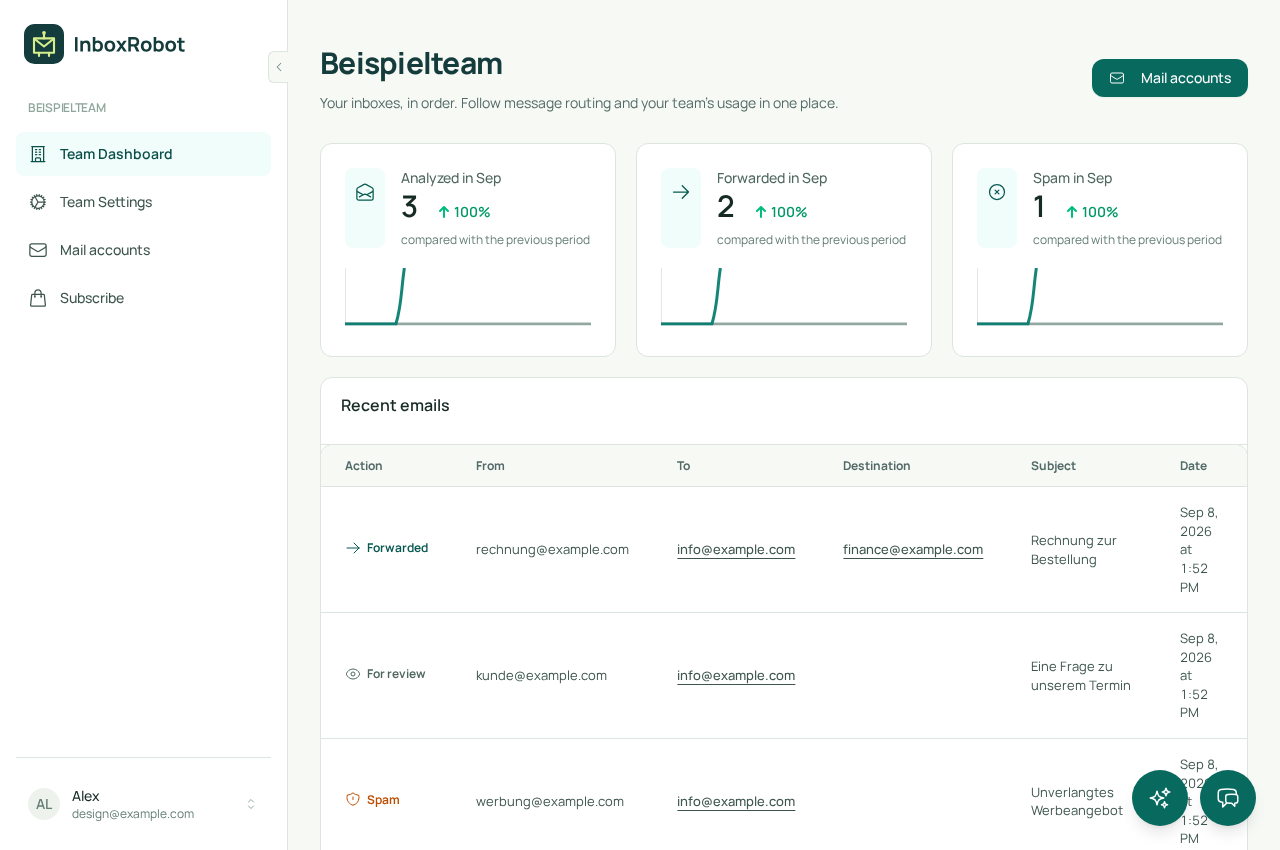
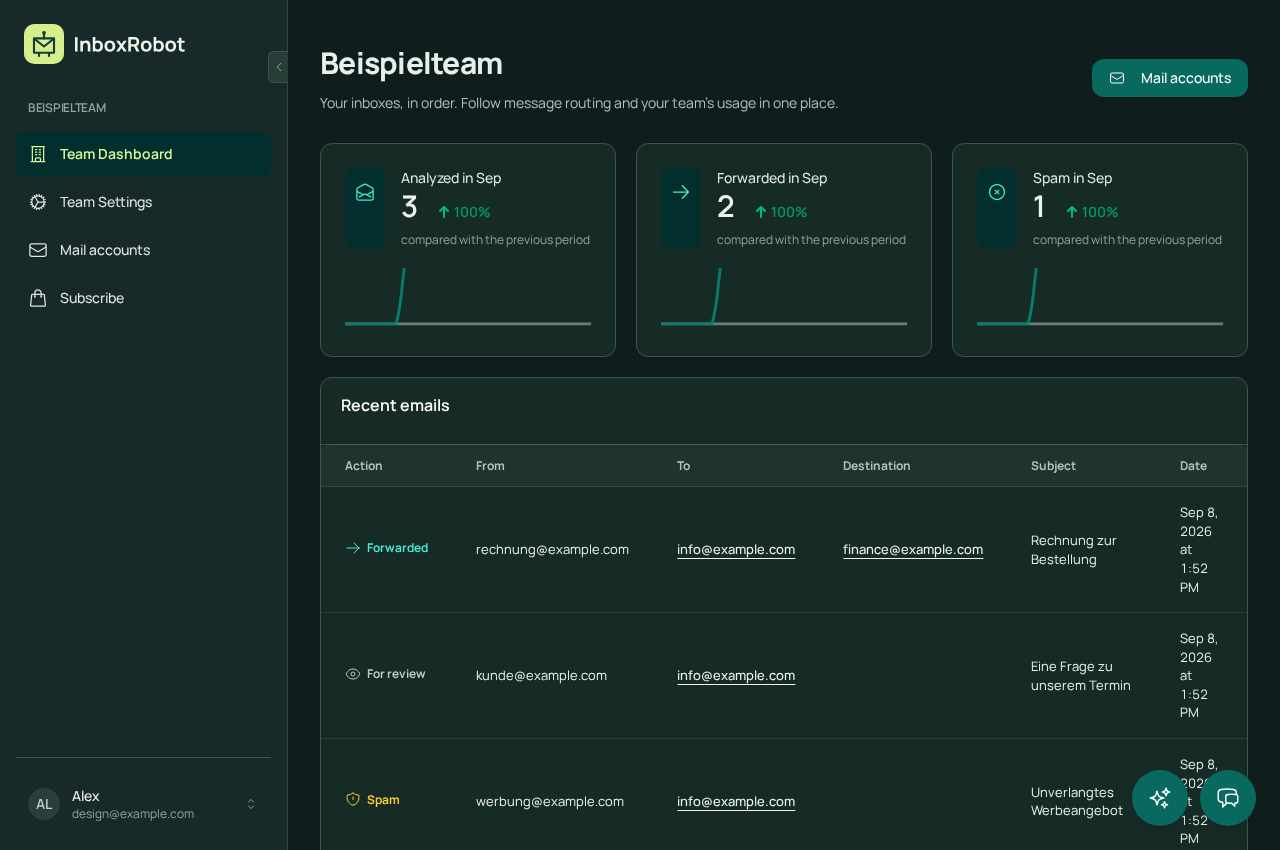
Example workspace with fictional messages.
Connect a mailbox with supported IMAP and SMTP access. Your provider’s settings determine whether it can be connected. Your team receives forwarded messages at its existing email addresses.
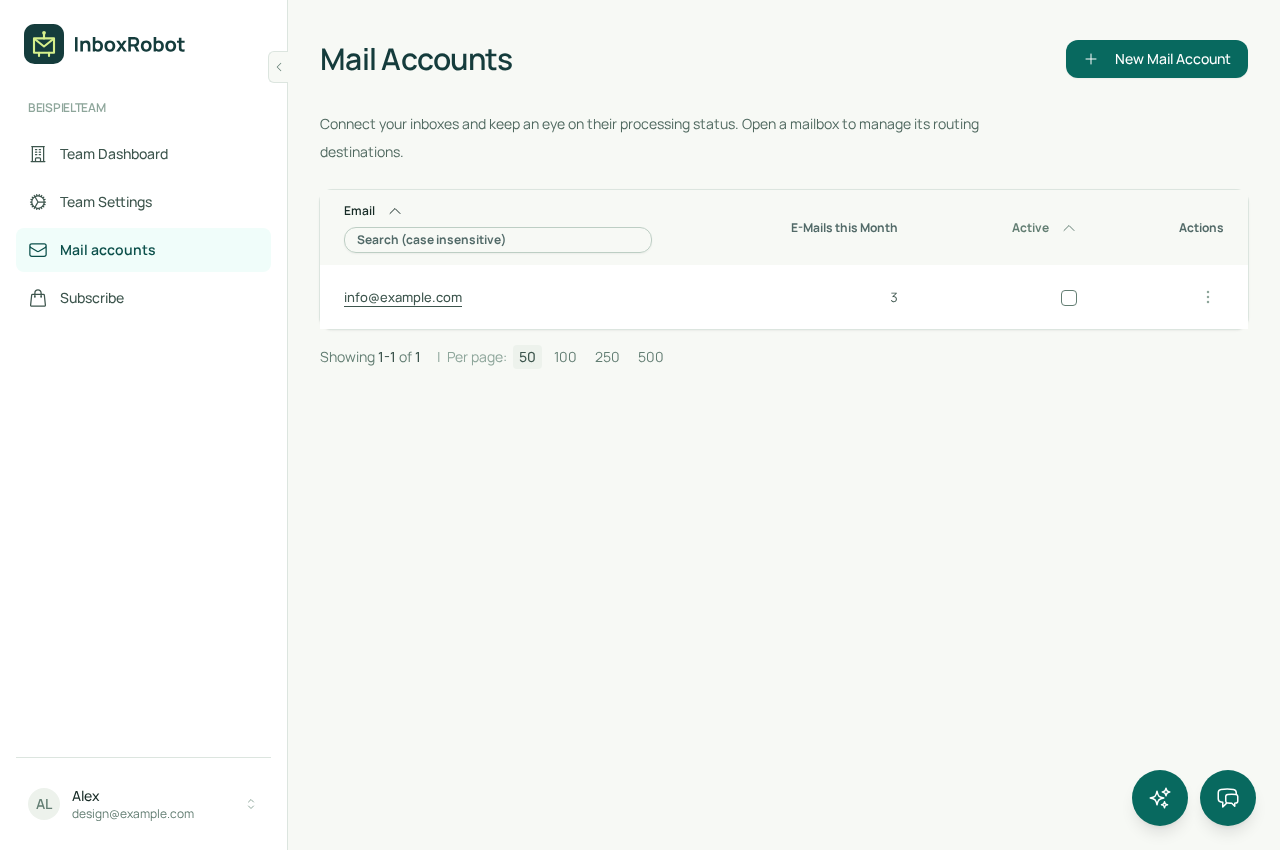
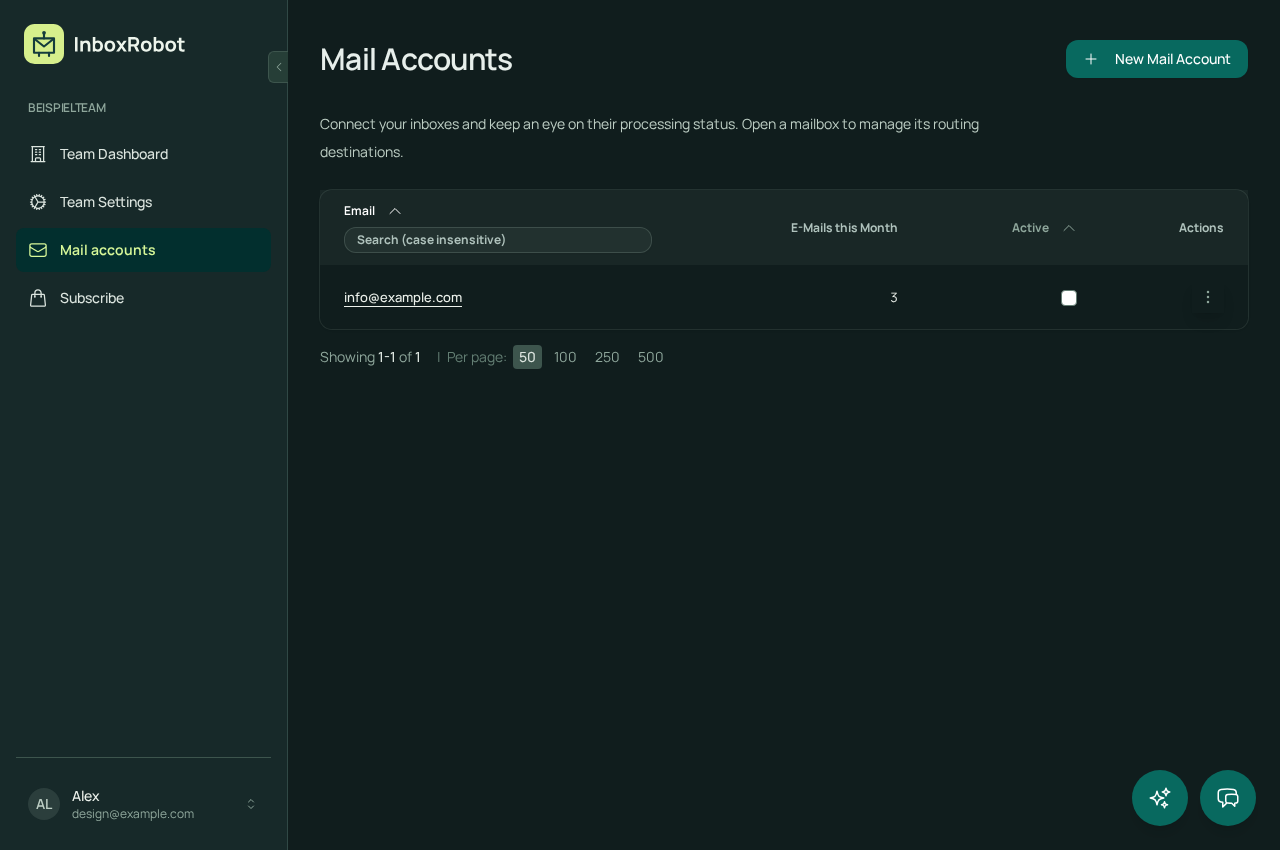
Example workspace with fictional messages.
“Invoices, receipts and payment reminders to finance@example.com.” InboxRobot uses the meaning of a message to match your description, so you do not need a separate rule for every subject line.
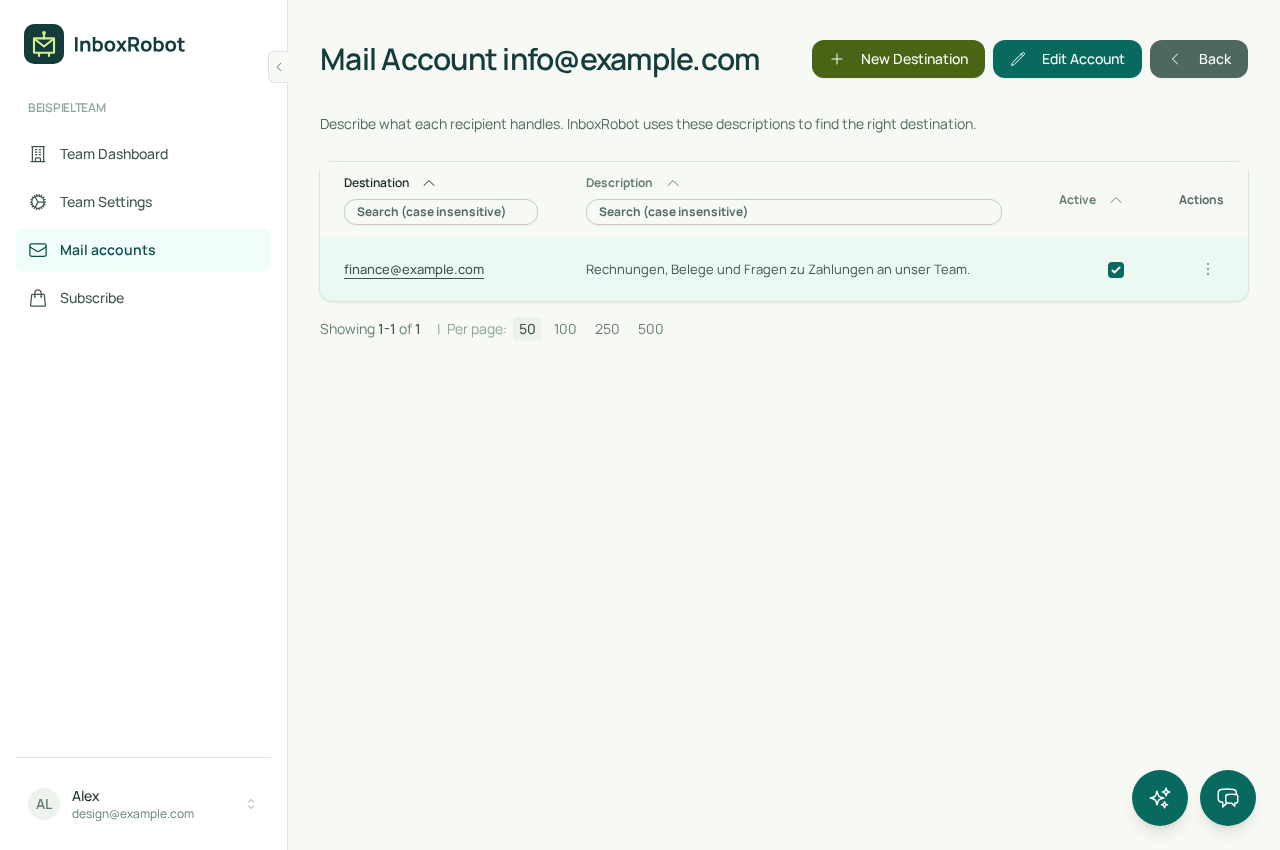
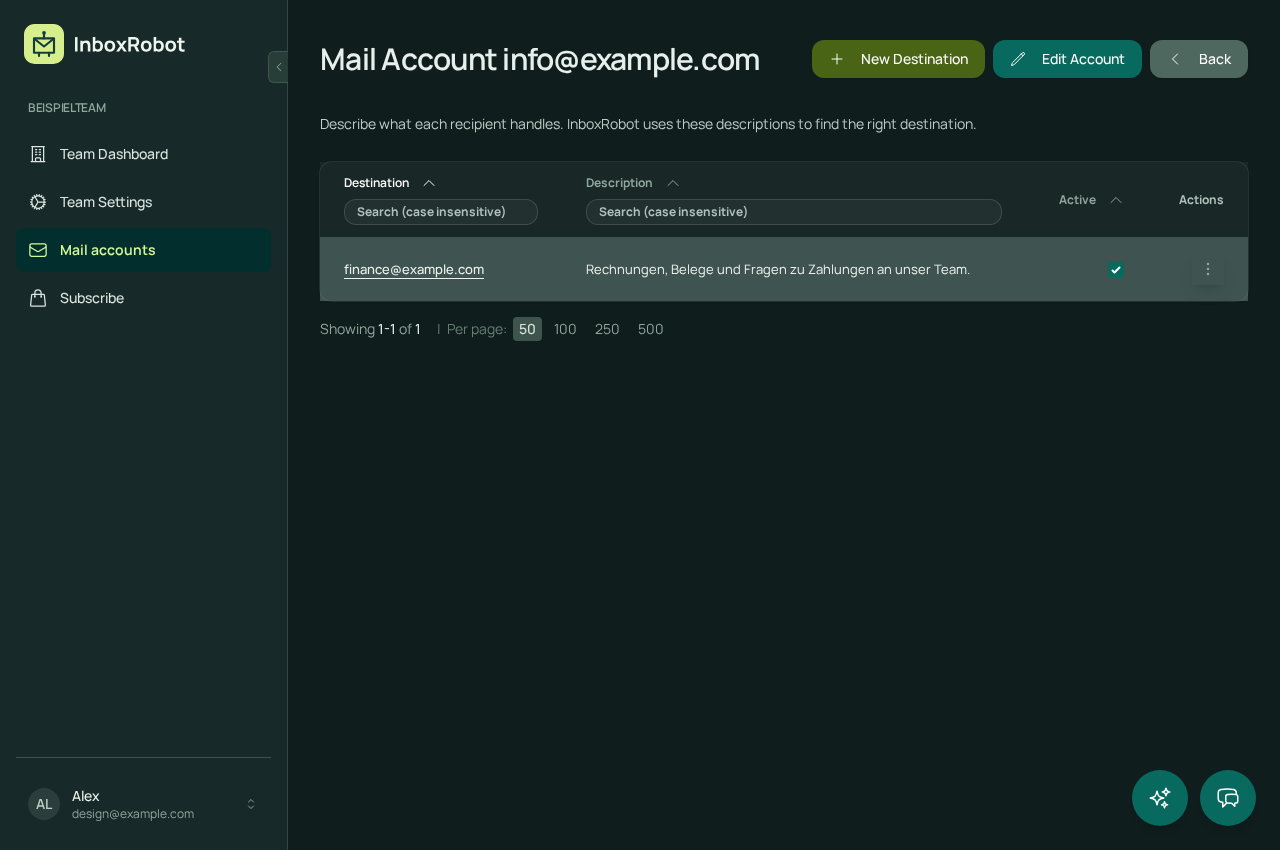
Example workspace with fictional messages.
InboxRobot classifies email through 2342.ai, our AI platform operated from Nuremberg. Your team writes the replies. The original messages stay in the source inbox; InboxRobot does not delete or move them.
Read about data processing
In my work as an IT consultant, I have often seen shared addresses become a sorting task for the whole team. Someone has to read each message, find the right person and forward it.
I built InboxRobot to take over that step. You describe the responsibilities, the software assigns incoming mail, and your team continues working in its existing mail app.
Less time forwarding. More time answering.

Our guides explain the difference between a shared mailbox, a combined inbox view and forwarding by content.
Simple, transparent pricing that adapts to the size of your company.
Perfect for small businesses getting started with email automation
$10.00 / month
Sign up now$8.33 / month (paid yearly)
Sign up nowFor growing businesses with serious email management needs
$79.00 / month
Sign up now$65.83 / month (paid yearly)
Sign up nowBuilt for scale - perfect for large organizations
$399.00 / month
Sign up now$332.50 / month (paid yearly)
Sign up nowWhat to know before connecting your team inbox
A forwarding rule usually matches a sender or specific words. InboxRobot uses AI to compare the content of an email with your destination descriptions. This lets you describe responsibilities rather than list every possible subject line.
No. InboxRobot forwards matching messages to configured email addresses. It marks processed messages and leaves the originals in the source mailbox. Existing rules and filters at your provider may still apply.
The source mailbox needs compatible IMAP and SMTP access. Whether that is available depends on your provider and account settings. Receiving forwarded email does not require an InboxRobot extension in Outlook, Gmail or Thunderbird.
A message without a clear destination stays unread for your team to review. You can refine the destination descriptions as you learn which topics arrive in the mailbox.
InboxRobot sets the original sender as the Reply-To address. When a team member replies, their mail app addresses the response to that sender. InboxRobot does not write or send the reply for them.
Start with a 14-day trial, connect a suitable mailbox and add your destinations. Check the processing history to see how incoming messages are assigned before extending the setup to more addresses.
Try InboxRobot free for 14 days. Start with one mailbox and the people who handle its messages.